
Set a location's public holidays
Set which public holidays apply to each location, so public holiday pay is estimated on the right days.
Shiftly works out which days are public holidays for each location, so public holiday rates land on the right dates when pay is estimated. The defaults come from the location's state, and you can exclude ones that don't apply or add your own.
Who this is for
Owners and managers using the Shiftly web platform. Public holidays are set per location, so each of your locations keeps its own list.
Before you start
- You're an owner or a manager with access to the location.
- Open Business Settings → Locations, then select Edit on the location you want.
- In the location editor, open the Public Holidays tab.
Review the default holidays
Open the Public Holidays tab
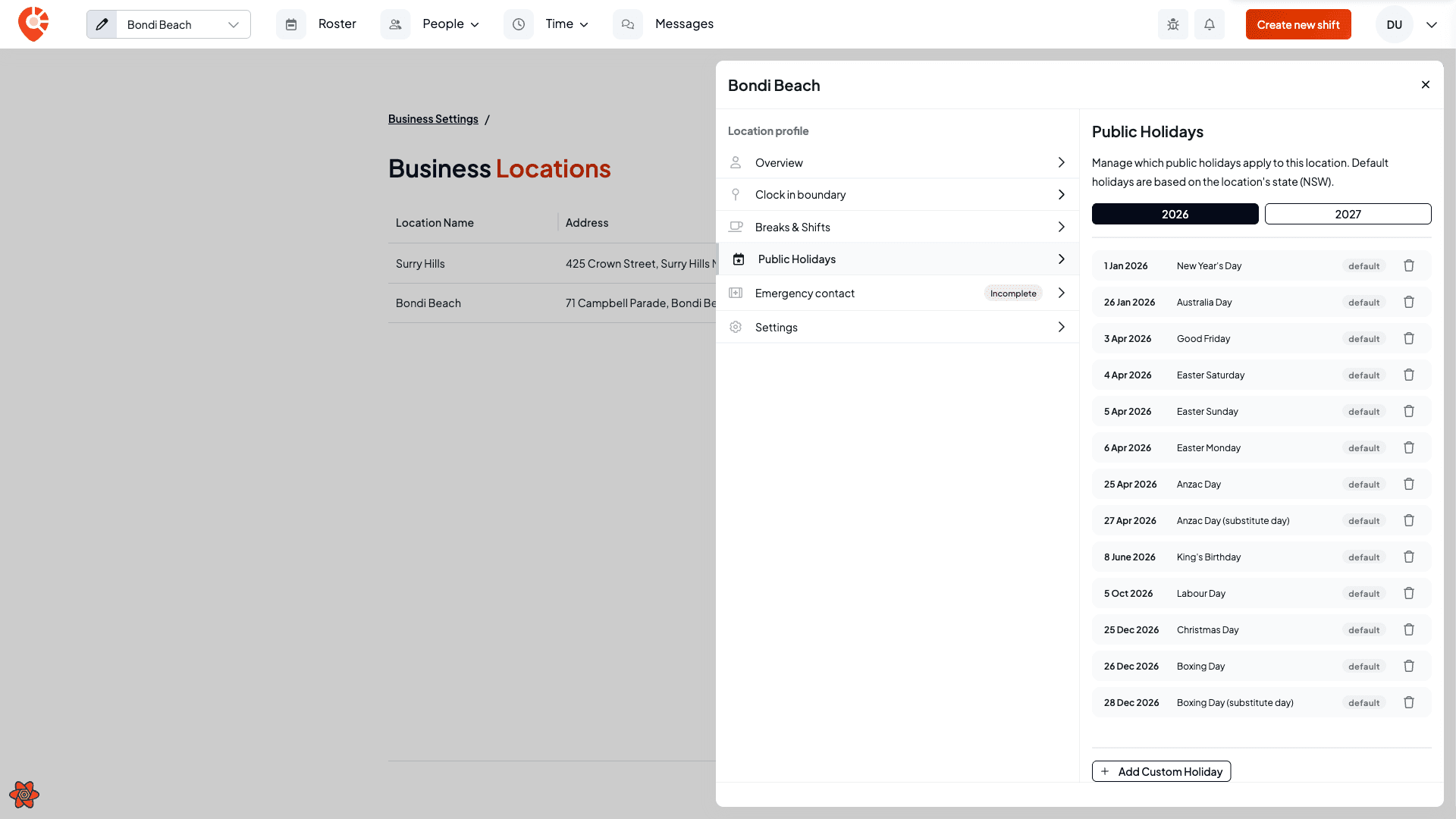
The list is pre-filled with the public holidays for the location's state, worked out from the location's timezone. The state is shown in the description (for example, NSW). Each default holiday carries a Default badge.
Switch between years
The toggle at the top shows the current year and the next year. Switch between them to review and adjust each year's holidays. The two years are managed separately.
Add a custom holiday
For a day that isn't a state default (a local show day, or a day your venue closes), add your own.
Open the form
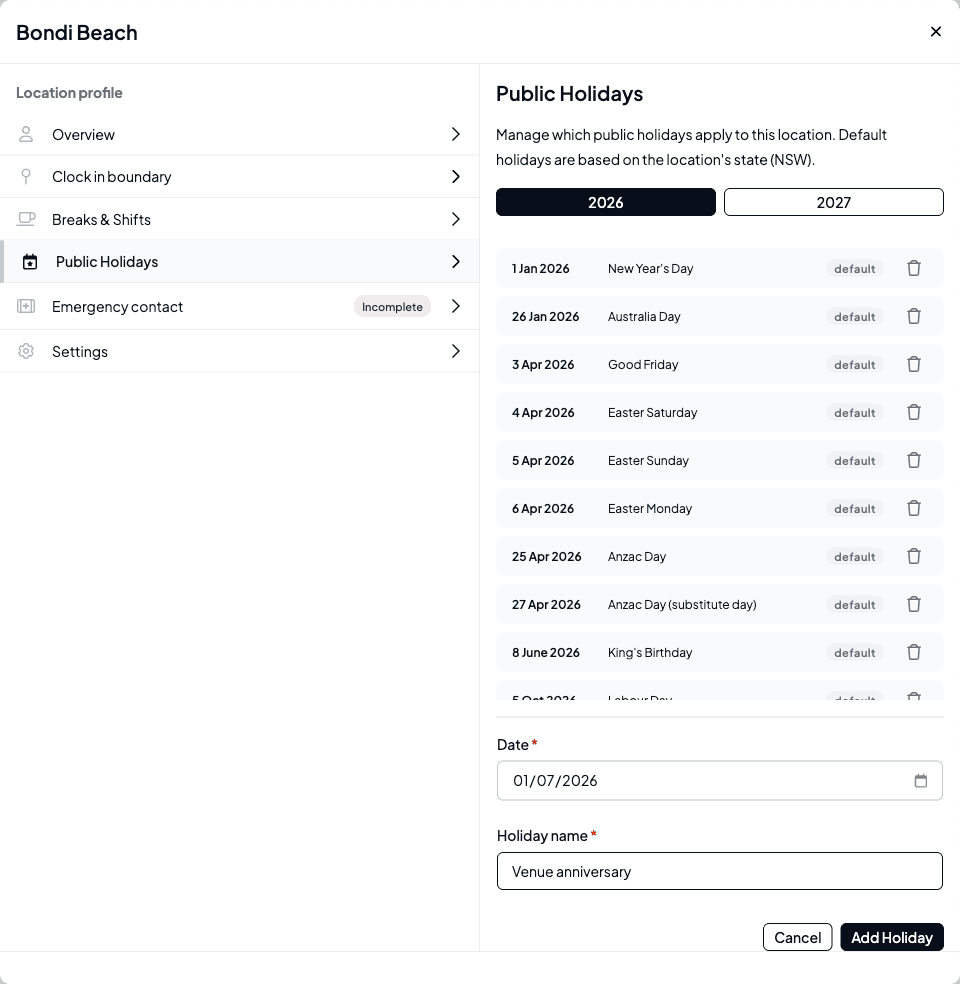
Select Add Custom Holiday, then enter a Date and a Holiday name. Add Holiday stays disabled until both are filled.
Add it to the list
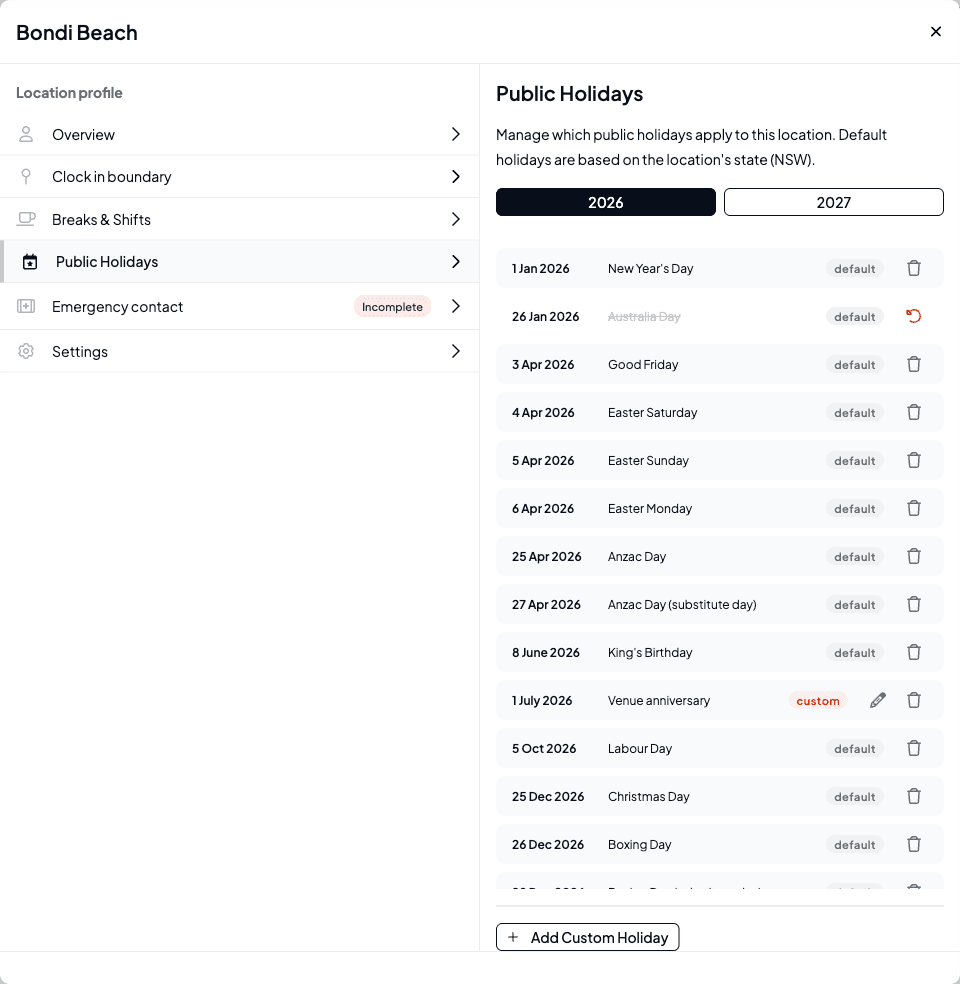
Select Add Holiday. The new day appears in the list in date order with a Custom badge, and its own edit and delete actions.
To rename a custom holiday, select the pencil (Edit name), change the text, and save. To remove one, select the bin (Delete) and confirm. Deleting a custom holiday can't be undone.
Exclude a default holiday
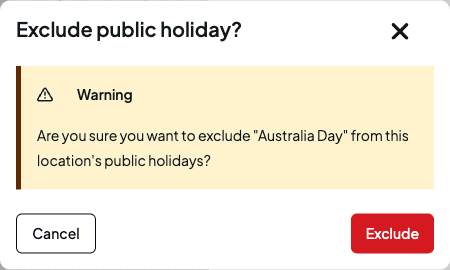
If a state default doesn't apply at this location, exclude it rather than deleting it: you can always bring it back.
Restore it later
An excluded default stays in the list, struck through, with a Restore action. Select Restore to bring it back. There's no confirmation, and it returns as a default.
Excluding a default only removes it for this location. Custom holidays and exclusions don't carry across to your other locations. Set each location's list separately.
Related
Locations
Everything else in the location editor: clock-in boundary, default shift times, and more.
Classify staff and estimate pay
How Shiftly classifies staff and estimates their public holiday and penalty rates.
Customise your pay rules
Adjust the rates and penalties that apply on public holidays and other days.
Adjust an employee's pay rate
Fine-tune individual rates on top of the award baseline.
On the Shiftly website
Pay rules
Custom pay conditions and loadings.
Adjust an employee's pay rate
Pay an employee above the award (with a percentage uplift, a fixed rate, or per-category rate overrides) and understand how allowances fit in.
Leave management
Approve leave, manage balances, and control when leave can be taken. Set up leave types, tune how balances accrue, action requests, and block time off during busy periods.