
Adjust an employee's pay rate
Pay an employee above the award (with a percentage uplift, a fixed rate, or per-category rate overrides) and understand how allowances fit in.
Shiftly estimates each employee's pay from their award classification. When you pay above the award, or need a specific rate for one category, you adjust it here, on the employee's Payroll tab.
Who this is for
Owners and managers using the Shiftly web platform. This is the home for per-employee rate adjustments. Every figure is an estimate: verify pay with your payroll provider.
Three ways pay is adjusted
There are three layers on top of the award baseline, and it helps to keep them apart:
- Allowances: extra payments for specific conditions (first aid, meals, laundry). Award allowances are chosen when you classify the employee with Shiftly AI; they're added to timesheets, not the hourly rate. You can also define your own custom allowances for the whole business in Customise your pay rules.
- An uplift or fixed rate: pay this employee a set percentage or dollar amount above the award base.
- Rate overrides: replace the calculated rate for a specific category (for example, Saturday) for this one employee.
Set a rate above the award
Open the employee's Payroll tab
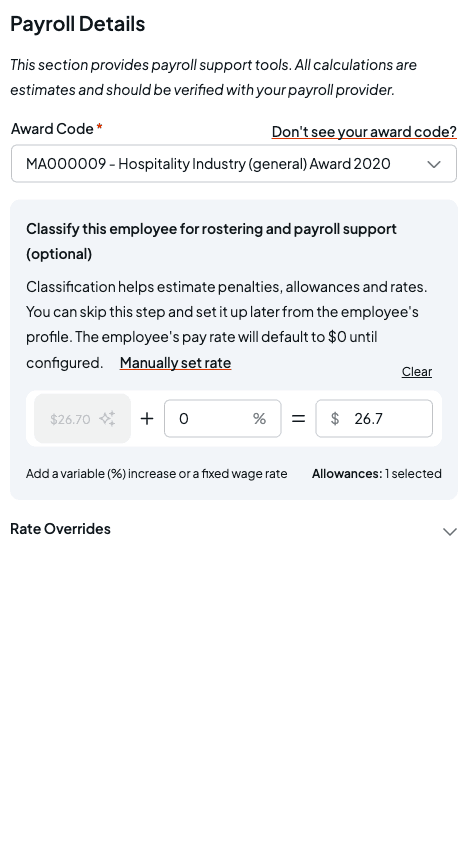
Go to People, select the employee, and open the Payroll tab. Once they're classified, the rate calculator shows the award base rate, a percentage field, and the resulting rate.
Add a percentage uplift or a fixed rate
Type a percentage to add a variable increase on top of the award base, or type a dollar amount to set a fixed rate. The two stay in sync. You can't set a rate below the award base; it snaps back up if you try. Selecting Clear removes the classification and rate.
Override individual category rates
Rate overrides let you replace the rate for one category (ordinary, overtime, weekend, public holiday) for this employee only.
Expand Rate Overrides
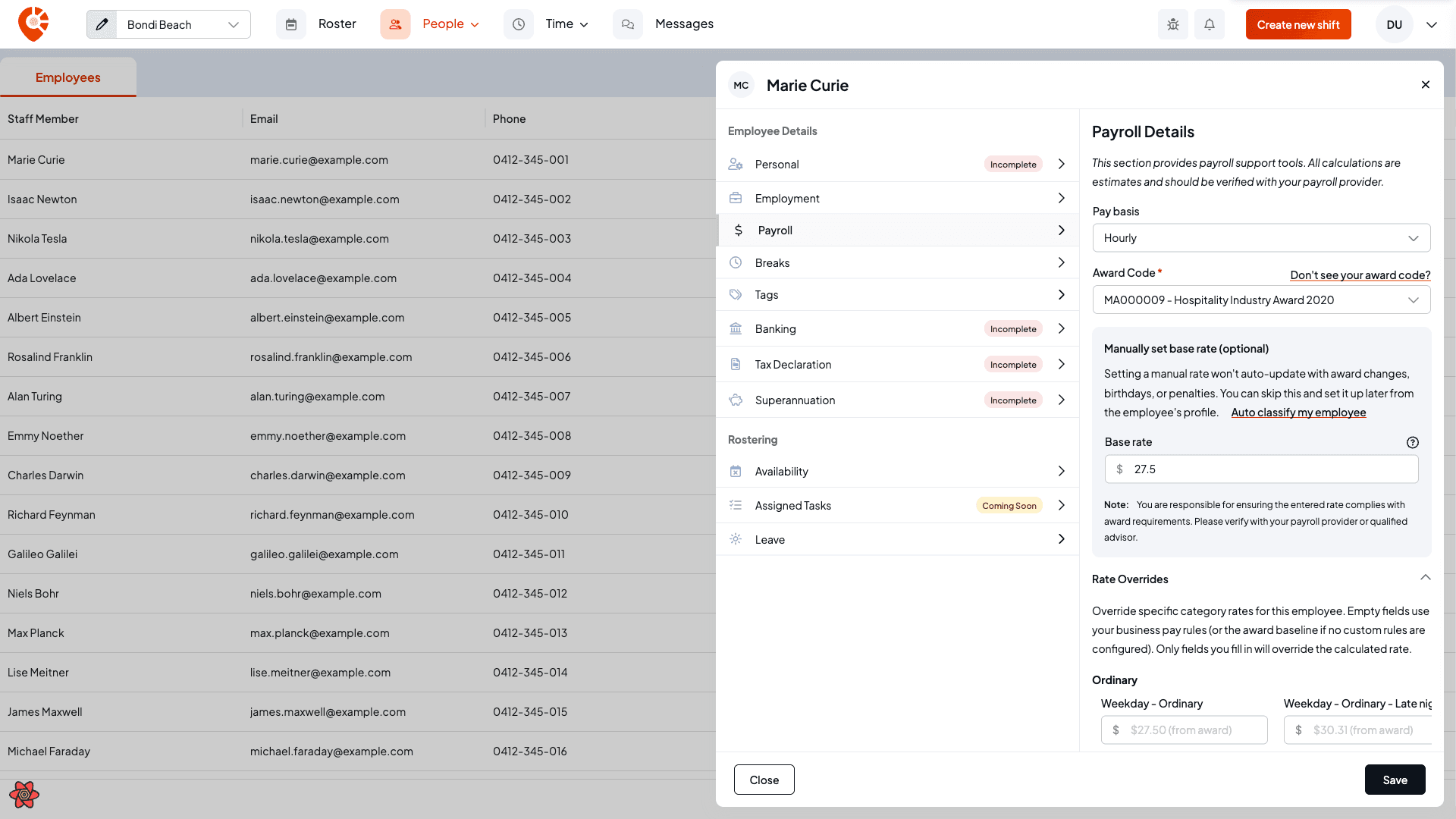
Select Rate Overrides to expand the panel. Each category shows its calculated rate as a placeholder: (from award), or (from rule set) if you've customised your business pay rules. Empty fields fall back to that calculated rate; only the fields you fill in override it.
Override a category
Type a rate into any category to override it. If your value is below the estimated award rate, Shiftly flags it with a warning so you can double-check. It doesn't stop you, but you should verify it with your payroll provider. Select the x on a field to clear that one override, or Clear all to remove them all.
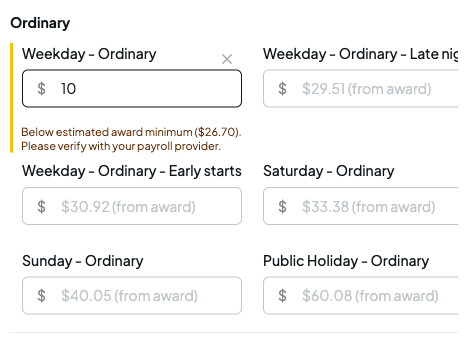
Overrides are tied to the current base rate. If you change the base rate (re-classify, or change the uplift), the overrides reset so the new rates apply cleanly. Re-enter any you still need. Remember to Save the employee to keep your changes.
Related
Classify staff and estimate pay
Classify the employee and pick their award allowances first.
Customise your pay rules
Set the business-wide rates, penalties, and custom allowances the overrides fall back to.
Rate overrides & allowances
The same controls reached from the employee profile.
Set a location's public holidays
Control which days the public holiday rate applies to.
On the Shiftly website
Award interpretation
Automatic award rates and penalties.